
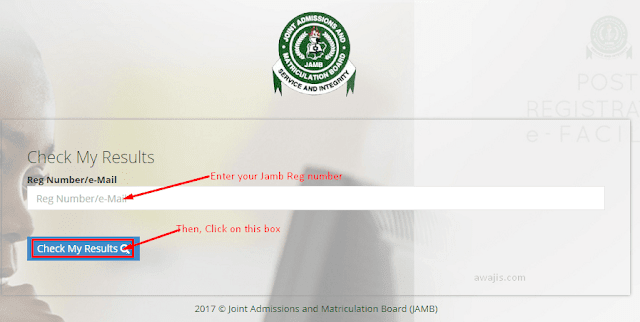
The JAMB E-Facility Portal at efacility.jamb.gov.ng is the national digital command centre through which all UTME and Direct Entry candidates manage their tertiary admission lifecycle. Whether you need to monitor your admission recommendations on JAMB CAPS, print your original result slip or admission letter, apply for data correction (change of course, institution, date of birth, state of origin), or regularize your admission, accessing your profile securely is essential.
This guide explains step-by-step login procedures, mobile desktop configuration, and password recovery protocols.
JAMB Portal Login 2026: How to Access Your Profile With Your Registration Details — Quick Reference Summary
Portal System: JAMB Central E-Facility Candidate Portal
Official Login URL: efacility.jamb.gov.ng
Required Login Credentials: Registered Email Address & Profile Password
Core Dashboard Services: Access CAPS, Print Result Slip, Print Admission Letter, Change of Course/Data
Password Recovery Channel: SMS 'PASSWORD <email>' to 55019 / 66019 or Email Reset Link
Table of Contents 10 sectionsShowHide
- Understanding JAMB Login Credentials (Email vs Registration Number)
- How to Log In to JAMB E-Facility Portal (Step-by-Step)
- Accessing JAMB CAPS on Mobile Devices (Desktop Site Fix)
- How to Reset Forgotten JAMB Portal Passwords
- Common E-Facility Services and Data Correction Guidelines
- Official Document Verification Dossier Checklist
- Troubleshooting Portal Login Errors and Administrative Support
- Conclusion
- Get Real-Time Admission & Screening Alerts
- Frequently Asked Questions (FAQs)
Understanding JAMB Login Credentials (Email vs Registration Number)
A common misconception among candidates is attempting to use their JAMB Registration Number as the login username. On the JAMB E-Facility Portal:
- Login Username: Is strictly your Registered Email Address provided during profile creation.
- Login Password: Is the unique alpha-numeric password sent to your email or created during registration.
- JAMB Registration Number: Is used inside the dashboard to query specific services (e.g. checking results or printing letters).
How to Log In to JAMB E-Facility Portal (Step-by-Step)
Follow these verified steps to access your candidate dashboard:
- Open your web browser and navigate to efacility.jamb.gov.ng.
- Enter your Registered Email Address in the first input box.
- Enter your Profile Password in the second input box.
- Click the blue Log In button.
- Upon successful authentication, your candidate landing dashboard will display all available services.
Accessing JAMB CAPS on Mobile Devices (Desktop Site Fix)
If you access CAPS on a smartphone and only see a blank screen or a static 'Welcome' message:
- Open Google Chrome or Safari settings (the three dots in the top right or bottom bar).
- Check the box for Desktop Site or select Request Desktop Website.
- Refresh the webpage. The full left-hand navigation sidebar will appear, allowing you to click on Admission Status, Transfer Approval, and O'Level Verification.
How to Reset Forgotten JAMB Portal Passwords
If you cannot remember your password, you can reset it instantly via SMS: send PASSWORD [your-registered-email] to 55019 or 66019 from your registered phone number. JAMB will send a new temporary password directly to your phone.
Common E-Facility Services and Data Correction Guidelines
The portal enables candidates to perform crucial post-UTME adjustments:
- Change of Course / Institution: ₦2,500 statutory fee to modify 1st, 2nd, 3rd, or 4th choice preferences.
- O'Level Result Upload Verification: Confirming that your WAEC/NECO grades are active in the national repository.
- Late Application (Regularization): For candidates admitted without initial JAMB records to obtain formal admission letters.
Official Document Verification Dossier Checklist
During both institutional online e-clearance and on-campus physical verification, admitted students must present an organized screening file containing the following mandatory credentials:
- JAMB Documentation: Original JAMB Admission Letter (Institution & Candidate copies printed in full color) and Original JAMB Result Slip featuring your clear biometric passport photograph.
- Academic Qualifications: Official O'Level Certificates or Statement of Results (WAEC, NECO, or NABTEB) accompanied by active online verification scratch card pins.
- Identity & Indigeneship: Certificate of State and Local Government of Origin signed by your Local Government Council Chairman or authorized liaison officer.
- Age Verification: Original National Population Commission (NPC) Birth Certificate or a valid Statutory Declaration of Age.
- Financial Evidence: Verified e-receipts for Post-UTME screening, non-refundable institutional acceptance fees, and faculty development levies.
- Health & Conduct: Comprehensive Medical Fitness Certificate from the University Health Centre and a formal Letter of Attestation/Good Conduct signed by a reputable community leader, cleric, or legal practitioner.
- Photographs: Eight (8) recent colored passport-sized photographs on a plain background with your full name written on the reverse side.
Troubleshooting Portal Login Errors and Administrative Support
Prospective students occasionally encounter portal access obstacles during high-traffic admission clearance windows. Below are verified solutions to common technical issues:
- 'Invalid Credentials' Error: Double-check that your JAMB Registration Number has no leading or trailing whitespace. If logging in with your surname, ensure correct case sensitivity as recorded on your screening slip.
- Password Reset Protocol: Use the Forgot Password link on the login dashboard. Enter your registered email to receive an automated password reset token. If you do not receive the email within 15 minutes, check your Spam/Junk folder.
- Payment Invoice Verification Delays: When paying via Remita or interswitch, network timeouts may delay immediate status updating. Click on the Re-query / Confirm Payment button on your student dashboard and enter your 12-digit RRR number to synchronize records instantly.
- Browser Compatibility: Access the portal using updated versions of Google Chrome, Mozilla Firefox, or Microsoft Edge. Always enable cookies and pop-up windows to allow PDF admission slips to render properly.
- Administrative Support Desk: For unresolved account lockouts, name corrections, or payment reconciliation, contact the Admissions Directorate or visit the University ICT Centre during official working hours (8:00 AM – 4:00 PM, Monday to Friday).
Conclusion
Successfully securing admission and completing clearance for the 2026/2027 academic session requires prompt action, careful document preparation, and strict adherence to official institutional and JAMB deadlines. Monitor both your student portal and your central JAMB CAPS profile regularly, complete your fee payments and online screening within the allotted windows, and ensure all uploaded credentials match your identity records accurately.
Stay proactive throughout the screening season, keep physical and digital duplicates of all payment receipts and clearance forms, and prepare thoroughly for an enriching academic journey ahead.
Get Real-Time Admission & Screening Alerts
Join over 65,000 Nigerian students receiving verified departmental cut-off drops, JAMB CAPS batch announcements, and post-UTME screening notices directly on WhatsApp.
Join SchoolGateHub WhatsApp Channel
Frequently Asked Questions
Quick answers to common questions about this guide
1Can I log in to JAMB portal using only my Registration Number?
No. The login portal (efacility.jamb.gov.ng) requires your registered email address and profile password. You then enter your Registration Number inside specific services.
2Why is my JAMB CAPS showing 'Welcome' on mobile?
This happens because your mobile browser is in mobile mode. Switch your browser settings to 'Desktop Site' to view the full CAPS menu.
3How do I reset my JAMB portal password?
Send 'PASSWORD <your-registered-email>' as an SMS to 55019 or 66019 from your registered SIM card.
4Can I print my JAMB Admission Letter from my portal profile?
Yes, after accepting your offer on CAPS, navigate to 'Print Admission Letter' on your dashboard and complete payment via Remita.
5How do I do Change of Course on the portal?
Click on 'Correction of Data' on your dashboard, select 'Course / Institution', generate a Remita invoice for ₦2,500, pay online, and effect the changes.
Join Our Educational Updates Community
Get instant real-time alerts on scholarships, state bursaries, admission lists, and student opportunities.