
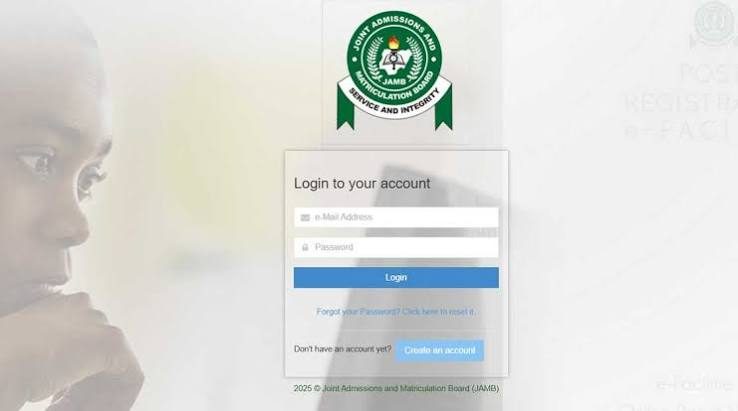
The Central Admissions Processing System (CAPS) is the official regulatory platform established by the Joint Admissions and Matriculation Board (JAMB) to oversee, standardize, and automate tertiary admissions across all Nigerian universities, polytechnics, and colleges of education. Institutional admission lists are only legally valid once uploaded and ratified on JAMB CAPS. This guide walks candidates through logging into their profile, navigating the desktop dashboard on mobile devices, interpreting admission status codes, and executing the irrevocable acceptance or rejection process.
Table of Contents 9 sectionsShowHide
- Essential Requirements for Accessing JAMB CAPS
- Step 1: Accessing the JAMB E-Facility Portal
- Important: Enabling Desktop Mode on Mobile Smartphones
- Step 2: Checking Your Admission Status and Interpreting the Stages
- Step 3: Accepting or Rejecting Your Admission Offer
- Step 4: Checking the Transfer Approval Tab
- Step 5: Printing Your Official JAMB Admission Letter
- Conclusion
- Frequently Asked Questions (FAQs)
Essential Requirements for Accessing JAMB CAPS
Before attempting to log in, candidates must ensure they possess the following credentials:
- Registered Profile Email Address: The exact email used during your UTME registration.
- Profile Password: The security password generated during your initial JAMB profile creation.
- Modern Web Browser: Google Chrome, Mozilla Firefox, or Apple Safari with "Desktop Site" mode enabled.
- Uploaded O-Level Results: Verification that your WAEC, NECO, or NABTEB grades have been scanned and uploaded by an accredited CBT centre.
Step 1: Accessing the JAMB E-Facility Portal
Follow these steps to access your central admission dashboard:
- Open your browser and navigate to efacility.jamb.gov.ng.
- Enter your registered email address and profile password in the login fields.
- Click on the Login button to access your student candidate dashboard.
- Scroll down through the menu icons and select Check Admission Status.
- Select your examination year (for example, 2026) and enter your 10-digit JAMB Registration Number.
- Click on the blue button labeled Access My CAPS.
Important: Enabling Desktop Mode on Mobile Smartphones
Candidates accessing the CAPS portal on mobile smartphones frequently see a blank white page or a welcome message with no clickable options. This occurs because the CAPS interface is designed for desktop screens. To fix this on Google Chrome:
- Tap the three vertical dots located at the top right corner of your browser.
- Scroll down and check the box next to Desktop site.
- The web page will reload into full desktop mode, revealing the navigation menu on the left sidebar.
Step 2: Checking Your Admission Status and Interpreting the Stages
Click on Admission Status on the left-side navigation panel. The portal will display your institutional choice, approved course, and one of the following official status messages:
CAPS Status Message Meaning and Interpretation Candidate Action Required
| Not Admitted | Your chosen institution has not yet evaluated or uploaded your screening score. | Wait patiently and check back periodically as screening batches are released.
| Admission in Progress (AIP) | The institution has recommended you for admission and submitted your file to JAMB. | Your profile is currently undergoing final ratification by the JAMB desk officer.
| Proposed | The institution has shortlisted you for a provisional quota slot. | No action required. The status will soon transition to Approved or AIP.
| Congratulation, You Have Been Offered Admission | Your admission is officially approved by both the university Senate and JAMB. | You must click either ACCEPT ADMISSION or REJECT ADMISSION.
Step 3: Accepting or Rejecting Your Admission Offer
When you receive an official admission offer on CAPS, two active buttons will illuminate below your bio-data: a green Accept Admission button and a red Reject Admission button.
- Accepting Admission: Clicking the green button confirms that you accept the offer from that institution. Once accepted, your profile is permanently closed on the JAMB portal for that academic session, and no other institution can offer you admission.
- Rejecting Admission: Clicking the red button declines the offer. Your profile will immediately return to the central marketplace pool, enabling other universities or polytechnics to consider you for admission.
Warning: The decision to accept or reject is final and cannot be reversed by candidates or university admission officers. Only click Accept if you are certain you wish to study the specified course at that institution.
Step 4: Checking the Transfer Approval Tab
If your university decides to offer you admission into an alternative course different from your original first choice, they will send a course transfer notification through the Transfer Approval tab on CAPS. You must navigate to Transfer Approval, review the new proposed department, and click Accept to allow the university to complete your admission processing.
Step 5: Printing Your Official JAMB Admission Letter
Once you accept admission on CAPS, proceed to print your official JAMB Admission Letter. This document is required during physical university registration, faculty clearance, and future NYSC mobilization. To print your letter:
- Log out of CAPS and return to the main JAMB e-facility dashboard.
- Click on Print Admission Letter.
- Complete the statutory payment of ₦1,000 via Remita.
- Download and print your official institutional and candidate copies in full color.
Conclusion
Staying proactive, following official guidelines, and preparing all required credentials well in advance is the key to successfully navigating academic milestones in Nigeria. Keep multiple physical and digital copies of your verified documents, adhere to stipulated deadlines, and verify all updates through official institution and board channels.
Frequently Asked Questions
Quick answers to common questions about this guide
1What should I do if my O-Level results show as blank or awaiting on CAPS?
If your O-Level subjects do not appear on CAPS under the "My O-Level" tab, your chosen university cannot recommend you for admission. Visit an accredited JAMB CBT centre immediately with your original O-Level statement of results to upload your grades to the central database.
2How long does it take for Admission in Progress (AIP) to change to Admitted?
The transition from AIP to a full admission offer typically takes between three days and two weeks, depending on the speed of clearance between your institution and the JAMB zonal office.
3Can discrepancies in registration details be corrected?
Yes, data corrections can be processed through the official JAMB e-Facility portal or your institution admissions office.
4Where can I get verified assistance if I encounter difficulties?
You can reach out through official helpdesks, accredited CBT centres, or the SchoolGateHub verified student community channel.
5Are there statutory deadlines to keep in mind?
Yes, always check and adhere to the published institutional clearance windows and 72-hour JAMB CAPS acceptance rules.
Join Our Educational Updates Community
Get instant real-time alerts on scholarships, state bursaries, admission lists, and student opportunities.